How to troubleshoot common gaming hardware issues? Dive into the world of gaming where hardware problems can turn thrilling adventures into frustrating challenges. Understanding the intricacies of your gaming system is essential for ensuring peak performance. From graphics cards to power supplies, knowing how to identify and resolve common hardware problems can make all the difference in your gaming experience.
Whether you’re encountering screen artifacts, random reboots, or connectivity issues with your peripherals, this guide will walk you through essential troubleshooting steps. We’ll explore signs of malfunction, methods for diagnosing issues, and effective solutions to get your gaming rig back in action. Get ready to empower yourself with the knowledge to tackle hardware hiccups with confidence!
Identifying Common Hardware Issues in Gaming Systems
In the world of gaming, hardware performance is crucial for an immersive experience. When issues arise, they can lead to frustrating gameplay interruptions. Recognizing and diagnosing these common hardware issues is the first step in ensuring your gaming setup runs smoothly. By understanding the signs of hardware malfunctions, gamers can take proactive measures to maintain their systems.Common signs that indicate hardware malfunctions in gaming setups include unexpected crashes, graphical artifacts, reduced frame rates, and boot failures.
These symptoms can significantly impact gameplay and are often the first indicators something is wrong. Hardware components that commonly encounter issues include graphics cards, motherboards, power supplies, and RAM. Each of these components plays a vital role in overall system performance, and recognizing signs of trouble can lead to quicker resolutions.
Initial Steps for Diagnosing Hardware Problems
Before diving into advanced troubleshooting, several initial steps can help identify the root cause of hardware issues. By methodically diagnosing the problem, gamers can often resolve issues efficiently without extensive technical knowledge.
Check for Basic Connections
Ensure all cables are securely connected, including power cables, monitor connections, and peripheral devices. A loose connection can often mimic hardware failure.
Listen for Beep Codes
Many motherboards emit beep codes during the boot process to indicate hardware issues. Refer to your motherboard manual for specific beep code meanings.
Inspect Hardware for Physical Damage
Examine components like the graphics card and RAM for any physical signs of damage, such as burn marks or broken parts. A visual check can reveal problems that may not be immediately apparent.
Test with Minimal Hardware
Remove non-essential components, such as extra RAM sticks or external peripherals, and try booting the system. This helps isolate the faulty hardware.
Monitor Temperatures
Overheating can cause performance issues. Use software tools to monitor the temperature of your CPU and GPU, ensuring they remain within safe operating limits.As you perform these steps, keep your gaming environment in mind. Good airflow, dust control, and regular maintenance can extend the life of your hardware. Understanding these preliminary actions can save time and potentially prevent further damage to your gaming system.
Troubleshooting Graphics Card Problems
Graphics cards are essential components of any gaming setup, responsible for rendering high-quality visuals and delivering immersive experiences. However, they can encounter a variety of issues that may disrupt gameplay and diminish performance. Recognizing the symptoms of graphics card problems is the first step in troubleshooting these issues effectively.
Identifying Symptoms of Graphics Card Issues
Various signs can indicate that your graphics card is malfunctioning. Common symptoms include:
- Screen Artifacts: These may appear as unusual shapes, colors, or glitches on the screen, often noticeable during gaming or graphic-intensive tasks.
- Crashes and Freezes: If your system frequently crashes, freezes, or experiences blue screens while gaming, it could be a sign of a failing graphics card.
- Lower Frame Rates: A sudden drop in frame rates or stuttering during gameplay can signal performance issues with the graphics card.
- Overheating: Excessive heat can lead to throttling and performance drops, indicating that your graphics card might not be functioning optimally.
Understanding these symptoms is crucial for timely intervention, ensuring that your gaming experience remains smooth and enjoyable.
Checking for Physical Damage and Connectivity Issues
Physical inspections can be an effective method to diagnose potential problems with your graphics card. Follow these steps to ensure everything is in good condition:
- Power Off and Unplug: Always turn off your computer and unplug it from the power source before opening the case.
- Inspect the Card: Remove the graphics card from the PCIe slot and check for any visible signs of damage, such as burn marks or broken connectors.
- Check Connections: Ensure that the power connectors are securely attached and that the card is properly seated in its slot.
- Clean Dust: Use compressed air to remove dust buildup from the card and surrounding components, as excessive dust can lead to overheating.
Regular maintenance is vital for longevity and optimal performance, making it essential to routinely check these aspects.
Testing Graphics Performance and Stability
Utilizing software tools can help you assess the performance and stability of your graphics card. Here are some recommended methods:
- Benchmarking Software: Programs like 3DMark or Unigine Heaven can provide insights into your graphics card’s capabilities, allowing you to compare results with others.
- Monitoring Tools: Utilize applications such as MSI Afterburner or GPU-Z to monitor temperature, clock speeds, and usage statistics during gaming sessions.
- Stress Testing: Use stress testing tools like FurMark to stress the GPU and identify any potential stability issues under load.
By systematically testing your graphics card’s performance, you can pinpoint areas of concern and take appropriate action to resolve them.
Resolving Motherboard Related Problems
Motherboard issues can be critical and may often lead to various disruptions in your gaming experience. Identifying potential motherboard failures early on can save time and money while ensuring your gaming setup remains efficient and reliable. By understanding the indicators of motherboard problems and how to tackle them, you can keep your hardware in peak condition.Multiple symptoms can indicate a motherboard failure, and recognizing these signs is paramount for effective troubleshooting.
Boot failures, where your system fails to start up, are often the first alarm. Unexpected shutdowns during gameplay or while performing tasks can signify deeper issues. Additionally, inconsistent performance, such as random system freezes or the inability to recognize components like RAM or GPUs, may also point to motherboard malfunction.
Inspecting and Testing Motherboard Connections
Properly inspecting and testing your motherboard connections is essential for diagnosing issues. Begin by ensuring that all power cables are securely connected to the motherboard, including the 24-pin ATX power connector and the CPU power connector. Loose connections can lead to boot failures and instability.The following steps will help you check for functionality:
1. Visual Inspection
Look for physical damages such as burnt components, swollen capacitors, or damaged traces. These defects can severely affect motherboard performance.
2. Re-seat Components
Remove and reinsert components such as RAM, GPU, and any expansion cards. This can resolve connection issues that may arise from improper seating.
3. Check Power Supply
Ensure that your power supply is functioning correctly. A faulty power supply can cause unexpected shutdowns and affect the motherboard’s operational integrity.
4. Utilize Diagnostic Tools
Tools like POST (Power-On Self-Test) cards can provide error codes indicating what might be wrong with the motherboard.
Properly diagnosing motherboard problems can often lead to swift resolutions, preventing prolonged hardware issues.
Updating Motherboard Firmware and Drivers
Keeping your motherboard’s firmware and drivers up to date is crucial for optimal performance and stability. Manufacturers frequently release updates to address bugs, improve performance, and enhance compatibility with new hardware. To ensure your motherboard is running the latest firmware and drivers, consider these practices:
Visit the Manufacturer’s Website
Identify your motherboard model and check for the latest firmware and driver updates.
Follow Update Instructions Carefully
When updating firmware, follow the manufacturer’s instructions to avoid corrupting the BIOS, which can render the motherboard unusable.
Use Manufacturer Software
Some manufacturers provide utility software that can automatically check for and apply updates, simplifying the process significantly.
Regularly updating your motherboard’s firmware and drivers helps in maintaining a seamless gaming experience and enhances system longevity.
Taking these steps can significantly mitigate motherboard-related issues and ensure your gaming hardware operates smoothly. Addressing these facets diligently prevents downtime and enhances the overall gaming experience.
Addressing Power Supply Failures: How To Troubleshoot Common Gaming Hardware Issues?
Power supply units (PSUs) are the lifeblood of any gaming rig, providing the necessary energy for components to function efficiently. When issues arise with the PSU, they can lead to frustrating gameplay interruptions and potential data loss. Understanding the symptoms of power supply failures and how to address them is crucial for maintaining a seamless gaming experience.Power supply problems often manifest in various ways, making it essential to recognize their signs early.
Common symptoms include random reboots during gameplay, failure to power on, or unusual noises such as clicking or buzzing emanating from the PSU. These issues can significantly impact your gaming sessions and may lead to hardware damage if not addressed promptly.
Testing the Power Supply Unit (PSU)
Testing your power supply unit is a critical step in diagnosing power-related problems. The following methods can effectively determine if your PSU is functioning correctly:
1. Using a Multimeter
A multimeter can measure voltage outputs from the PSU. Ensure the PSU is connected to power but switched off. Use the multimeter probes to check the voltage of the different connectors (e.g., 24-pin ATX, 4/8-pin CPU, and 6/8-pin GPU connectors). The readings should match the standard voltage specifications:
3.3V, 5V, and 12V for various connectors.
Any significant deviation indicates a faulty PSU.
2. Bypass Method
This method involves shorting the green wire and any black wire on the 24-pin connector with a paperclip. This forces the PSU to power on without being connected to a motherboard, allowing you to check if the fan operates and if it supplies power to connected devices.
Replacing a Faulty PSU
When a PSU is deemed faulty after testing, replacing it becomes necessary. Follow these steps to ensure a safe and effective replacement:
1. Safety Precautions
Always unplug the power cord and discharge any residual electricity by pressing the power button after disconnecting the PSU. Wear an anti-static wrist strap to prevent static discharge that can harm components.
2. Choosing the Right Replacement
Ensure the new PSU matches or exceeds the wattage of the old unit. Consider efficiency ratings (80 Plus certifications) for better performance and longevity. Compatibility with the motherboard and other components is essential, so check connector types and cable lengths.
3. Installation Steps
Remove the screws securing the old PSU in place and disconnect all cables from the motherboard and peripherals.
Position the new PSU in the case, aligning it with the screw holes, and secure it with screws.
Connect the necessary cables to the motherboard, GPU, and peripherals, ensuring a snug fit to avoid any power issues.
4. Final Check
Before powering on your system, double-check all connections and ensure there are no loose cables. Once everything is confirmed, plug in the power cord and turn on your PC to see if it functions correctly.With these insights, addressing power supply failures becomes a straightforward process, enabling gamers to return to their virtual worlds with confidence and peace of mind.
Assessing and Fixing Cooling Systems
Proper cooling is crucial for maintaining optimal performance in gaming systems. As gaming technology advances, the demand for better cooling solutions has become more pronounced. Inadequate cooling can lead to overheating, system instability, and even hardware damage. Signs of insufficient cooling include unusually high temperatures, frequent system crashes, and an increase in fan noise. Recognizing these symptoms early can prevent long-term damage to your gaming hardware.Cleaning dust from fans and heatsinks is an essential preventive measure that can significantly enhance cooling efficiency.
Dust accumulation can obstruct airflow and trap heat, exacerbating cooling issues. Regular maintenance not only prolongs the lifespan of your components but also helps maintain a quieter operation. Here’s how to ensure your cooling system is functioning at its best:
Cleaning Dust from Fans and Heatsinks
Regular cleaning of your cooling components is vital for optimal airflow and efficiency. Follow these steps to effectively clean dust from your gaming system’s fans and heatsinks:
1. Power Down and Unplug
Always turn off your system and unplug it from the power source to prevent any electrical issues.
2. Open the Case
Carefully remove the side panel of your computer case to access the internal components.
3. Use Compressed Air
Utilize a can of compressed air to blow dust off the fans and heatsinks. Aim for the fan blades, heatsink fins, and any areas where dust has accumulated.
4. Gentle Wiping
For stubborn dust, use a soft microfiber cloth dampened with rubbing alcohol to wipe down surfaces. Avoid getting any liquid on electrical components.
5. Check Fan Operation
After cleaning, spin the fans manually to ensure they are not obstructed and can operate freely.
6. Reassemble the Case
Once everything is clean, reattach the side panel, plug in your system, and power it on.
Find out about how How to identify profitable cryptocurrency trading opportunities can deliver the best answers for your issues.
Monitoring System Temperatures
Monitoring your system temperatures is essential in identifying potential overheating issues before they cause damage. Utilizing software tools can provide real-time temperature readings for your CPU, GPU, and other components. Here are some popular software options and their features:
HWMonitor
This utility displays the temperatures of your various hardware components, allowing you to track their performance.
Core Temp
Specifically designed for monitoring CPU temperatures, Core Temp can give you accurate data about your processor’s thermal status.
MSI Afterburner
Primarily used for GPU monitoring and overclocking, this software also provides temperature readings and fan speed control.In case of overheating, consider implementing the following solutions:
Improve Case Airflow
Ensure that your case has adequate airflow by organizing cables and using high-quality case fans.
Upgrade Cooling Solutions
If temperatures remain high, consider investing in aftermarket CPU coolers or liquid cooling systems that provide better heat dissipation.
Adjust Fan Curves
Utilize software to adjust the speed of fans based on temperature thresholds, ensuring they ramp up as needed.
Finish your research with information from What specifications make a good gaming laptop?.
Reapply Thermal Paste
If your components are aging, reapplying thermal paste between the CPU/GPU and their heatsinks can significantly improve thermal conductivity.Maintaining an effective cooling system is imperative for a smooth and enduring gaming experience. Regular cleaning and precise monitoring can ensure that your gaming hardware remains in peak condition, delivering optimal performance when you need it most.
Common Peripheral Device Issues and Solutions
Gaming peripherals play a crucial role in enhancing the overall gaming experience. However, issues with devices such as mice, keyboards, and headsets can disrupt gameplay. Understanding common problems and their solutions can help maintain seamless connectivity and optimal performance.Peripheral devices can face a variety of challenges that hinder their functionality. These may include connectivity issues, malfunctioning keys or buttons, and audio disruptions.
Identifying these problems and implementing effective troubleshooting steps is essential for any gamer looking to maintain their setup. Here are some frequent issues along with practical solutions to ensure that your gaming peripherals perform at their best.
Frequent Problems with Gaming Peripherals, How to troubleshoot common gaming hardware issues?
Various common issues affect gaming peripherals, including:
- Mouse Lag or Connectivity Issues: A delayed response from your mouse can impact gameplay, especially in fast-paced environments.
- Keyboard Not Responding: Keys that stick or fail to register inputs can disrupt typing and gaming performance.
- Headset Audio Issues: Problems with sound quality or microphone malfunctions can hinder communication during multiplayer sessions.
Recognizing these issues is the first step toward resolving them and ensuring your gaming experience remains uninterrupted.
Troubleshooting Connectivity Issues
Connectivity problems can arise with both wired and wireless devices, which can be frustrating. Here are steps to troubleshoot these issues effectively:
- Wired Devices:
- Check the USB port for any dirt or debris and clean it if necessary.
- Try connecting the device to a different USB port or computer to rule out port failure.
- Wireless Devices:
- Ensure the device is charged and turned on.
- Check the Bluetooth settings on your PC or console to confirm the device is paired.
- Move the device closer to the receiver to eliminate any potential interference.
These troubleshooting steps can help restore connectivity, allowing gamers to get back to their sessions without delay.
Maintaining and Updating Peripheral Drivers
Regular maintenance and updates are vital for optimal performance of gaming peripherals. Keeping drivers updated can significantly enhance responsiveness and functionality. Consider the following tips:
- Regularly Check for Updates: Visit the manufacturer’s website to download the latest drivers.
- Uninstall and Reinstall Drivers: If a device malfunctions, uninstalling the driver and reinstalling it can resolve issues.
- Utilize Manufacturer Software: Many brands provide dedicated software to manage device settings and updates efficiently.
Adopting these practices ensures that your peripherals remain in top shape and compatible with the latest gaming advancements.
Obtain a comprehensive document about the application of Bianca Censori Holding ‘Powerful Card’ Against Kanye West in Marriage — Source that is effective.
Software Conflicts Affecting Hardware Performance
In the realm of gaming, hardware and software must work in harmony to deliver a seamless experience. However, software conflicts can disrupt this synergy, leading to frustrating hardware performance issues. Identifying and resolving these conflicts is essential for gamers who seek to optimize their systems and enjoy an uninterrupted gameplay experience.Software conflicts occur when different programs or applications on your system compete for resources or interfere with each other’s operations.
This can manifest as stuttering frame rates, unexpected crashes, or even complete system freezes. Common culprits include background applications that consume excessive CPU or memory, outdated drivers, or conflicting software settings. Understanding how to diagnose and resolve these issues is critical for maintaining your system’s performance.
Identifying and Resolving Software Conflicts
Identifying software conflicts is the first step towards restoring optimal hardware performance. Utilizing tools such as task managers and system diagnostics can help pinpoint resource hogs and conflicting applications.
Task Manager
This built-in Windows tool provides a detailed overview of running applications, CPU usage, and memory consumption. By accessing the Task Manager (CTRL + Shift + Esc), gamers can quickly identify which applications are consuming the most resources. Look for programs or processes that are unfamiliar or that may not be necessary during gaming sessions. Disabling these can lead to improved performance.
System Diagnostics
Leveraging built-in system diagnostic tools can reveal issues related to drivers or system configurations. Windows provides a “Resource Monitor” that allows you to see real-time data on CPU, memory, disk, and network usage. This information is invaluable for spotting software conflicts.
Effective conflict resolution often depends on keeping software updated and ensuring that incompatible programs are removed.
Optimizing System Settings for Compatibility
To further enhance hardware compatibility and performance, optimizing system settings is imperative. Adjustments can minimize the likelihood of software conflicts and improve overall system responsiveness.
Update Drivers
Regularly update graphics and hardware drivers to the latest versions from trusted sources. This can resolve compatibility issues that arise from outdated software.
Manage Startup Programs
Many applications launch automatically when the system starts, consuming resources from the get-go. Disabling unnecessary startup programs through Task Manager can free up system resources for gaming.
Adjust Graphics Settings
Lowering graphics settings within games can alleviate strain on hardware, particularly if software conflicts are affecting frame rates. Experimenting with settings like texture quality, shadows, and anti-aliasing can yield noticeable improvements.
Configure Performance Options
Within the Windows settings, adjusting for best performance can help prioritize gaming applications over background processes. This adjustment can be made in the “Performance Options” menu under System Properties.By adopting these practices, gamers can significantly enhance their gaming experience. A well-optimized system not only ensures compatibility but also maintains peak performance during intense gaming sessions.
Utilizing Community Resources for Hardware Troubleshooting
In the world of gaming, hardware issues can often feel isolating, but there’s a wealth of support available online. Gamers can leverage community resources to troubleshoot their hardware problems, tap into shared knowledge, and even connect with fellow enthusiasts who have faced similar challenges. This collaborative approach not only speeds up the troubleshooting process but also enriches the gaming experience.Online forums and communities are invaluable when it comes to finding solutions for hardware-related issues.
They serve as platforms where gamers share experiences, offer advice, and provide solutions based on real-life scenarios. These resources are often filled with individuals who have extensive expertise and passion for gaming hardware, making them ideal for resolving problems efficiently.
Popular Communities and Resources
Exploring the various online communities dedicated to gaming hardware can lead to quick and effective troubleshooting. Here are some popular platforms where gamers can seek assistance:
- Reddit: Subreddits like r/buildapc and r/pcmasterrace provide a wealth of user-generated content and expert advice. These communities allow users to post specific issues and receive tailored advice from experienced members.
- Tom’s Hardware: This forum has been a staple in the PC building community for years. With threads dedicated to specific hardware and troubleshooting tips, it’s a great place to find help.
- GameFAQs: Beyond game guides, GameFAQs has forums where players can discuss hardware issues, making it a versatile resource for troubleshooting.
- Steam Community: The Steam platform not only supports gaming but also hosts forums where players can discuss technical problems related to their hardware and software.
- Discord Servers: Many gaming communities have dedicated Discord servers where gamers can chat in real-time about hardware issues, share solutions, and collaborate on fixes.
Effectively communicating your hardware problem in these communities can significantly enhance the quality of the assistance you receive. Providing comprehensive details ensures that community members can offer informed responses. Here are some tips to communicate your issues effectively:
- Be Specific: Clearly describe your hardware setup, including make and model, along with the specific issue you are experiencing.
- Include Context: Share what you were doing when the problem occurred and any troubleshooting steps you have already taken.
- Use Clear Language: Avoid jargon unless it’s necessary, and be concise while ensuring you cover all relevant details.
- Follow Up: If someone offers assistance, be sure to thank them and provide feedback on what worked or didn’t, which helps refine the community’s knowledge base.
“Utilizing community resources not only accelerates the troubleshooting process but also fosters a sense of camaraderie among gamers.”
Final Conclusion
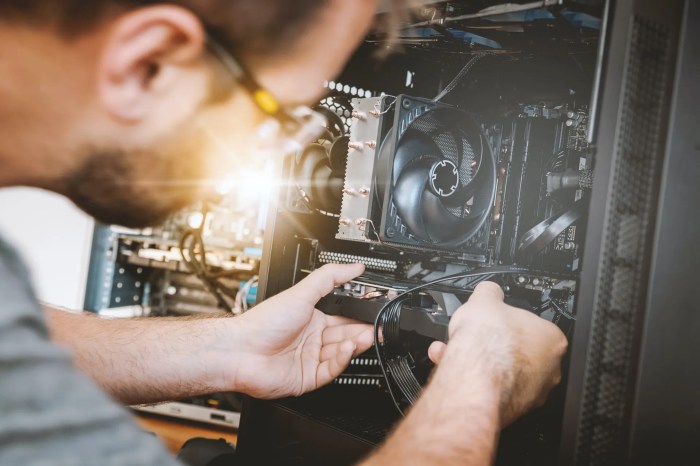
In conclusion, navigating the world of gaming hardware troubleshooting can be straightforward with the right approach. By understanding the common issues and applying the techniques discussed, you can enhance your gaming experience and extend the life of your equipment. Don’t let hardware malfunctions disrupt your gameplay; equip yourself with these troubleshooting skills and stay in the game!